You have spent half an hour working through the trip with your AI assistant. The late arrival has been accounted for. Saturday has some breathing room. The dinner suggestion survived the group’s list of dietary requirements.
Then someone asks where the plan is.
You could paste the conversation into the group chat. Next comes a screenshot, a correction, and a second screenshot with the correction. By Friday, three people have three different versions of Saturday.
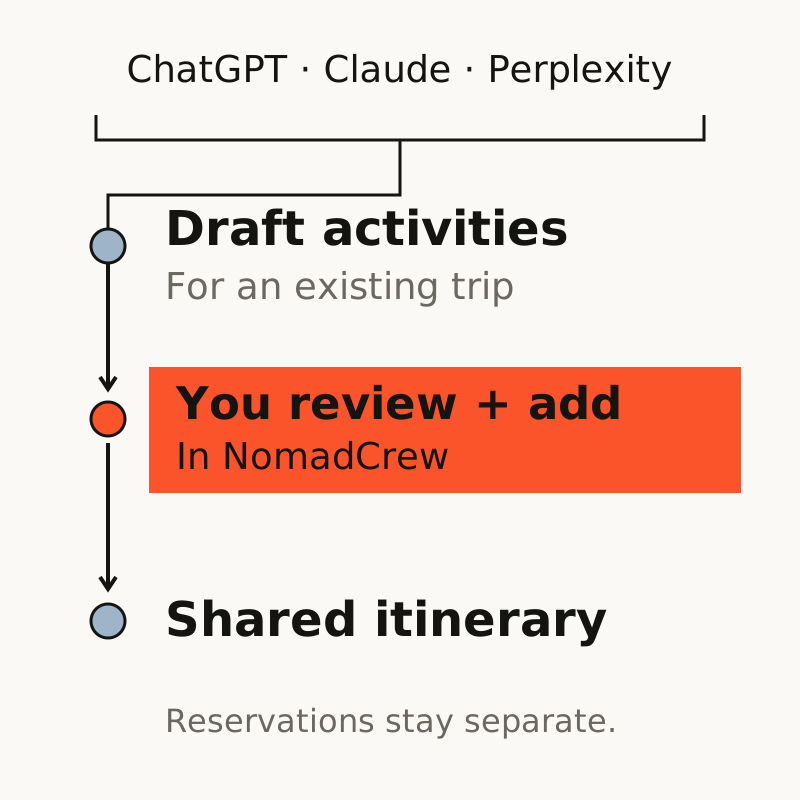
NomadCrew’s AI connector gives that draft somewhere to go. Prepare the itinerary in ChatGPT, Claude or Perplexity, send it to an existing NomadCrew trip, and review it in the app before adding the plans. The conversation stays useful for working through ideas. The shared itinerary gives trip members somewhere to check the agreed schedule.
Keep the assistant you already know
You may have a preferred assistant, saved prompts, or a conversation containing the group’s brief. Use that context to develop the plan. NomadCrew connects to supported accounts through a custom AI connector; the assistant can read your trip context and prepare an itinerary draft for your review.
Your assistant subscription stays with its provider. Connector availability depends on your account and workspace settings, so a subscription alone does not guarantee access. Here is what to check before starting:
| Assistant | Where to check |
|---|---|
| ChatGPT | On the web, check access to Developer mode and custom apps. OpenAI currently lists Plus, Pro, Business, Enterprise and Education as eligible plans. See the official setup instructions. |
| Claude | Check Customize → Connectors for a custom connector. Team and Enterprise workspaces may need an owner to enable it. See Claude’s custom-connector guide. |
| Perplexity | Check whether your account offers a custom remote connector. Perplexity documents remote connectors in Computer; access and setup can vary by account. |
This walkthrough follows the Android early-access flow. Check that your installed app shows Connect your AI and Import plans before setting up the connector. If setup asks for client details you don’t have, or your account cannot complete the connection, use the structured import below.
Connect once, then choose the trip
First, create the trip in NomadCrew with the intended dates and timezone. The connector works with existing trips, so make this step part of your setup.
In Profile → Connect your AI, copy the connector URL shown in the app. Add it through your assistant’s custom-connector settings. The connection process opens a NomadCrew authorization page in your browser.
Choose Review connection in NomadCrew, review the requested permissions in the app, then choose Connect assistant. Keep the original browser tab open: return to it and select Continue to your AI to finish. If you started on a computer, the app also accepts the connection link or code in Connecting from a computer?
The connector can read trip and itinerary context and prepare drafts. Check the account and permissions before approving. You can disconnect it later from Connect your AI.
Give your assistant a clear handoff
Imagine an advisor preparing a weekend for six friends. Two arrive late on Friday; everyone can make Saturday dinner and Sunday breakfast. The advisor has already checked the outline with the group and created the trip in NomadCrew.
Here is a prompt for that handoff. Replace the sample name and dates with your trip:
Use the NomadCrew connector to find my existing trip “Lisbon Weekend”, November 13–15, 2026. Read its dates, timezone and current itinerary first. If more than one trip matches, ask me which one to use.
Prepare a draft with two proposed plans: Group dinner on November 14 at 19:30, and Breakfast together on November 15 at 09:00, using the trip’s local time. Do not invent venues or booking confirmations. Return the review link. I will review and add the plans in NomadCrew.
This is sample planning data, rather than a restaurant recommendation. For a developed itinerary, ask the assistant to use the agreed outline already in your conversation. Give it confirmed times and locations where you have them; leave uncertain details open for review.
Review on your phone, then add the plans
Open the returned review link and choose Review in NomadCrew. If the link is on your computer, use Copy review link to send it to your phone. Sign into the same NomadCrew account used for the connection.
In Import plans, check the destination trip, dates, local times and proposed activities. Read any warnings about overlaps or possible duplicates. An AI suggestion needs the same checks you would give a plan prepared by hand: opening hours, transfer time, booking status and whether the group can make it.
When the draft is ready, tap Add N plans to trip, where N is the number of proposed plans. The current flow adds the draft’s full batch. If it needs changes, ask your assistant for a revised draft before adding it.
Opening the link does not add the plans. After your confirmation, use Open itinerary to check the saved result. Existing itinerary items stay in place; imported suggestions arrive as planned activities, with reservations handled separately.
Where this fits in a travel advisor’s workflow
If you already use an AI assistant for research and first drafts, the useful step is carrying that work into the group’s plan. You can check the schedule, add it to the trip, and invite the travelers to join NomadCrew. Members use the app to access the shared itinerary and group features.
Fora offers advisors a booking platform, an itinerary builder, an AI assistant, training and commission support. Those services cover more than itinerary handoff. You can see that scope in Fora’s advisor offering.
NomadCrew’s connector lets you bring a plan from your chosen supported assistant into a shared trip. An advisor evaluating it should test that specific job with a small group. Supplier bookings, commissions and the rest of the advisor’s business remain with the services they use for those tasks.
Once the plan is in the trip, group chat can carry the discussion, polls can help resolve choices, and shared expenses can record who paid for agreed costs. For two practical setups, see the guides to different arrival times and running a small retreat.
If your assistant account has no connector access
NomadCrew also supports a structured import. Open the trip’s Itinerary → Import plans → Show JSON example. Give that example to your assistant and ask it to format the agreed itinerary to match. Paste the resulting JSON, select Review plans, and check it before adding the batch. Use the JSON format shown in the app; this field does not accept a conversation or PDF.
Use the Android closed-testing steps to get access. For your first run, use an existing trip and two simple plans so you can check the full result.
We haven’t yet verified these AI steps in the public iPhone app.